---
title: How to set up your Broadcast Event with Zoom
description: Learn how to set up Zoom livestreaming for your Gathr Event, configure streaming credentials, and host a seamless post-screening Q&A or talkback.
---
[Skip to content](https://support.gathr.com/-#main-content)
English
Show submenu for translations
![gathr\_logo\_hubspot.png\]](https://support.gathr.com/hs-fs/hubfs/gathr_logo_hubspot.png?height=50&name=gathr_logo_hubspot.png)
Open main navigation
Close main navigation
- English
Show submenu for translations
- [Go to gathr.com](https://gathr.com/)
[Go to gathr.com](https://gathr.com/)
Your Guide to Using GATHR
- There are no suggestions because the search field is empty.
1. [Help Center](https://support.gathr.com/?hsLang=en)
2. [Film Screening Host Toolkit](https://support.gathr.com/film-screening-host-toolkit?hsLang=en)
# How to set up your Broadcast Event with Zoom
## A step-by-step guide to preparing and livestreaming a Zoom Meeting or Webinar to Gathr, including setup instructions, scheduling considerations, and best practices for hosting a post-screening Q&A or talkback.
### **Preparing Zoom for a Gathr Livestream**
This guide explains how to prepare your Zoom Meeting or Webinar to livestream directly to your Gathr Event's Watch page for a post-screening Q&A or talkback.
**You must create your meeting/webinar to match your Event time and enter your live streaming credentials before your Event begins.**
**1. Enable Livestreaming on Your Zoom Account**
Before streaming to Gathr, make sure custom livestreaming is enabled in your Zoom account.
1. Sign in to the[Zoom web portal](https://zoom.us).
2. Navigate to **Settings**.
3. Depending on your event type:
4. **Meetings:** Under **Meeting → In Meeting (Advanced)**, enable **Allow livestreaming of meetings**.
5. **Webinars:** Under **Webinar → In Webinar**, enable **Allow livestreaming**.
6. Select **Custom Live Streaming Service** as an allowed streaming destination.
**Note:** Your Zoom account must have the appropriate license to livestream Meetings or Webinars. If the setting is unavailable or locked, double-check your Zoom subscription level to ensure it includes your target event type.
For more detail, see Zoom's instructions for[enabling Meeting livestreaming](https://support.zoom.com/hc/en/article?id=zm_kb&sysparm_article=KB0059839) or[enabling Webinar livestreaming](https://support.zoom.com/hc/en/article?id=zm_kb&sysparm_article=KB0059831).
**2. Schedule Your Zoom Meeting or Webinar for Your Post-Screening Q&A or Talkback**
Create a Zoom Meeting or Webinar for your post-screening Q&A or talkback.
1. Sign in to the[Zoom web portal](https://zoom.us).
2. Navigate to[**Meetings**](https://zoom.us/meeting/schedule) or[**Webinars**](https://zoom.us/webinar/list), depending on your event type.
3. Click **Schedule a Meeting** or **Schedule a Webinar**.
4. Enter your Meeting or Webinar details, including the date, start time, and duration.
5. Click **Save** or **Schedule**.
#### **Things to Keep in Mind When Scheduling Your Q&A or Talkback**
**Your film and Q&A are two separate functionalities presented seamlessly on a single watch page**
Your attendees will watch the film on Gathr's Watch page, but you'll manage and start your Q&A from Zoom. You won't automatically see the film from your Zoom interface.
If you'd like to watch the film alongside your audience, you can issue yourself a complimentary ticket and open the Gathr Watch page in a separate browser window.
**The Gathr Watch page chat is not visible in Zoom.**
If you'd like to follow attendee comments or questions in the Gathr chat, issue yourself a complimentary ticket and open the Watch page in a separate browser window. This allows you to monitor the chat while managing your Zoom session.
**Plan your Q&A start time around your film's runtime.**
Your attendees will automatically start seeing the film playback when your Gathr Event starts. When the film finishes, they'll automatically transition to your Zoom livestream.
For example, if your screening starts at 7:00 PM and your film runs for 90 minutes, your audience will transition to the Q&A at approximately 8:30 PM, so you could plan to start your Zoom session at 8:20 PM, for example.
**Your Zoom session should already be running before this transition occurs.** We recommend starting your Zoom Meeting or Webinar early to prepare your speakers, test audio and video, and ensure you're ready when the film finishes.
**Plan your Q&A duration around your Gathr Event's end time.**
Your Gathr Watch page will stop displaying the livestream at the Event's scheduled end time, as configured when you created your Event.
Make sure you've allowed enough time for the film, Q&A, and any additional discussion. If your Q&A runs beyond your Gathr Event's end time, attendees will no longer be able to watch it through the Gathr Watch page, since the feed stops at your event’s end time.
**3. Configure Your Zoom Meeting or Webinar to Stream to Gathr**
You must enter your streaming credentials before your Meeting or Webinar begins.
1. From your scheduled Meeting or Webinar in the Zoom web portal, locate the **Live Streaming** tab. For webinars, you may need to click the forward arrow to reveal additional tabs.
2. Click **Configure custom streaming**.
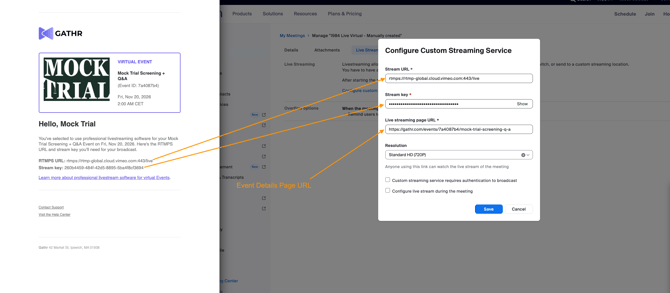
3. Copy the **Stream URL** and **Stream Key** provided by Gathr via email (subject line: **Your Event livestream is ready)** and paste them into the corresponding fields in Zoom.
4. Under **Live streaming page URL**, enter the URL of your Event page - the page where your audience reserved their tickets.
5. Click **Save** to apply your streaming settings.
Here is an example of the email you will receive and where to input the stream URL and the Stream Key:
Your Zoom Meeting or Webinar is now configured to stream to Gathr.
For more detail, see Zoom's guide to[configuring custom livestreaming for Meetings and Webinars](https://support.zoom.com/hc/en/article?id=zm_kb&sysparm_article=KB0064210).
**4. Start Your Livestream from Zoom**
When you're ready to begin broadcasting:
1. Start your scheduled Zoom Meeting or Webinar as the host.
2. In the Zoom host controls, click the **More (⋯)** button.
3. Select **Livestream → Live on Custom Live Streaming Service**.
4. A browser window will open with your streaming configuration.
5. **If you configured your credentials in advance:** Your Stream URL, Stream Key, and Live streaming page URL should already be populated.
6. **If you haven't configured your credentials:** Enter the Stream URL, Stream Key, and Gathr Watch page URL in the corresponding fields.
7. Click **Go Live!** to start broadcasting to Gathr.
**Important: Only click Start / Go Live! when you're ready to broadcast.**
For your Gathr Event, you should plan to initiate the Zoom livestream only once. Do not rely on being able to stop and restart the broadcast.
Gathr cannot guarantee immediate assistance with livestreaming issues unless you've booked a **Virtual Event Producer** to join and support your Event.
**5. Best Practices for Your Gathr Livestream**
**When to start streaming**
We recommend clicking **Go Live!** some minutes your film's closing credits. This gives you time to establish your Zoom livestream before attendees transition from film playback to the Q&A.
Your Zoom Meeting or Webinar should already be running, with panelists prepared and ready for the discussion.
**Keep your Zoom audio muted during film playback**
As soon as you click **Go Live!**, your Zoom audio feed is transmitted to the Gathr Watch page, even if the film is still playing.
This means attendees may hear audio from your Zoom session during film playback.
If you start your Zoom livestream before the film finishes, **keep yourself and your other Zoom participants muted** until the film has ended and you're ready to begin the Q&A.
**Be ready for the automatic transition**
Your attendees will automatically transition from film playback to the Zoom livestream as soon as the film ends.
There is no additional action required from attendees, so make sure your Zoom livestream is already active and your speakers are ready to begin.
**Account for livestream delay**
Your Gathr livestream will typically run approximately **10 seconds behind your Zoom Meeting or Webinar** due to streaming latency.
This is normal and shouldn't affect the attendee experience. If you're monitoring both Zoom and Gathr simultaneously, you'll notice that Zoom is slightly ahead of the Gathr livestream.
**Monitor your Gathr Watch page**
We recommend opening your Gathr Watch page in a separate browser window using a complimentary ticket.
This lets you monitor the attendee experience, follow the Watch page chat, and confirm that your livestream is reaching your audience.
To avoid audio feedback, mute the Watch page playback while monitoring it.
**Ending your livestream**
When your discussion or Q&A is finished, stop the livestream through Zoom or end your Zoom Meeting or Webinar.
Remember that your Gathr Watch page will automatically close the livestream at your Event's scheduled end time, even if your Zoom session is still running.
- [Filmmaker Resources](https://support.gathr.com/filmmaker-resources?hsLang=en)
- [Film Screening Host Toolkit](https://support.gathr.com/film-screening-host-toolkit?hsLang=en)
- [Video on Demand (VOD) Setup & Viewing](https://support.gathr.com/video-on-demand-vod-setup-viewing?hsLang=en#main-content)
- [Watching a VOD](https://support.gathr.com/video-on-demand-vod-setup-viewing?hsLang=en#watching-a-vod)
- [Creating a VOD](https://support.gathr.com/video-on-demand-vod-setup-viewing?hsLang=en#creating-a-vod)
- [Event Creation & Management](https://support.gathr.com/event-creation-management?hsLang=en#main-content)
- [Payments and Fees](https://support.gathr.com/event-creation-management?hsLang=en#payments-and-fees)
- [Why Gathr?](https://support.gathr.com/event-creation-management?hsLang=en#why-gathr)
- [Fundraising](https://support.gathr.com/event-creation-management?hsLang=en#fundraising)
- [Policies & Misc](https://support.gathr.com/event-creation-management?hsLang=en#policies-misc)
- [Marketing & PR](https://support.gathr.com/event-creation-management?hsLang=en#marketing-pr)
- [Your Account Settings](https://support.gathr.com/your-account-settings?hsLang=en#main-content)
- [Account Settings](https://support.gathr.com/your-account-settings?hsLang=en#account-settings)
- [Profile Preferences](https://support.gathr.com/your-account-settings?hsLang=en#profile-preferences)
- [Managing Profiles](https://support.gathr.com/your-account-settings?hsLang=en#managing-profiles)
- [Booking Preferences](https://support.gathr.com/your-account-settings?hsLang=en#booking-preferences)
- [Attending Events](https://support.gathr.com/attending-events?hsLang=en#main-content)
- [Ticket Holders](https://support.gathr.com/attending-events?hsLang=en#ticket-holders)
- [Managing Your Event](https://support.gathr.com/managing-your-event?hsLang=en#main-content)
- [Virtual Event Settings](https://support.gathr.com/managing-your-event?hsLang=en#virtual-event-settings)
- [Event Creation](https://support.gathr.com/managing-your-event?hsLang=en#event-creation)
- [About Events](https://support.gathr.com/managing-your-event?hsLang=en#about-events)
- [Event Page Management](https://support.gathr.com/managing-your-event?hsLang=en#event-page-management)
- [Cancellations](https://support.gathr.com/managing-your-event?hsLang=en#cancellations)
- [Event Marketing](https://support.gathr.com/managing-your-event?hsLang=en#event-marketing)
- [Talent Booking & Management](https://support.gathr.com/talent-booking-management?hsLang=en#main-content)
- [Booking Talent](https://support.gathr.com/talent-booking-management?hsLang=en#booking-talent)
- [Booking FAQ](https://support.gathr.com/talent-booking-management?hsLang=en#booking-faq)
- [About Bookings](https://support.gathr.com/talent-booking-management?hsLang=en#about-bookings)
- [Manage Your Bookings](https://support.gathr.com/talent-booking-management?hsLang=en#manage-your-bookings)
- [Talent & Venue Setup](https://support.gathr.com/talent-venue-setup?hsLang=en#main-content)
- [Profiles](https://support.gathr.com/talent-venue-setup?hsLang=en#profiles)
- [Marketing & PR](https://support.gathr.com/talent-venue-setup?hsLang=en#marketing-pr)
- [Offerings](https://support.gathr.com/talent-venue-setup?hsLang=en#offerings)
- [Policies, Payments, & Communication](https://support.gathr.com/policies-payments-communication?hsLang=en#main-content)
- [Transactions & Payments](https://support.gathr.com/policies-payments-communication?hsLang=en#transactions-payments)
- [Communication](https://support.gathr.com/policies-payments-communication?hsLang=en#communication)
- [Off-Platform Policy](https://support.gathr.com/policies-payments-communication?hsLang=en#off-platform-policy)
- [Host Profile Resources](https://support.gathr.com/host-profile-resources?hsLang=en#main-content)
- [Marketing & PR](https://support.gathr.com/host-profile-resources?hsLang=en#marketing-pr)
- [General](https://support.gathr.com/host-profile-resources?hsLang=en#general)
- [Theatrical On Demand](https://support.gathr.com/theatrical-on-demand?hsLang=en)
- [Gathr At Home™](https://support.gathr.com/gathr-at-home?hsLang=en)
- [Coming Soon](https://support.gathr.com/coming-soon?hsLang=en)
- [Features](https://support.gathr.com/features?hsLang=en)
- [Zoom](https://support.gathr.com/zoom?hsLang=en)
- [Events On Demand™](https://support.gathr.com/events-on-demand?hsLang=en)
[](http://gathr.com)
Help Center
Copyright © 2026, Gathr®